
How to Use Dynamic Content with Reference and Multi-Reference Fields in SP Page Builder

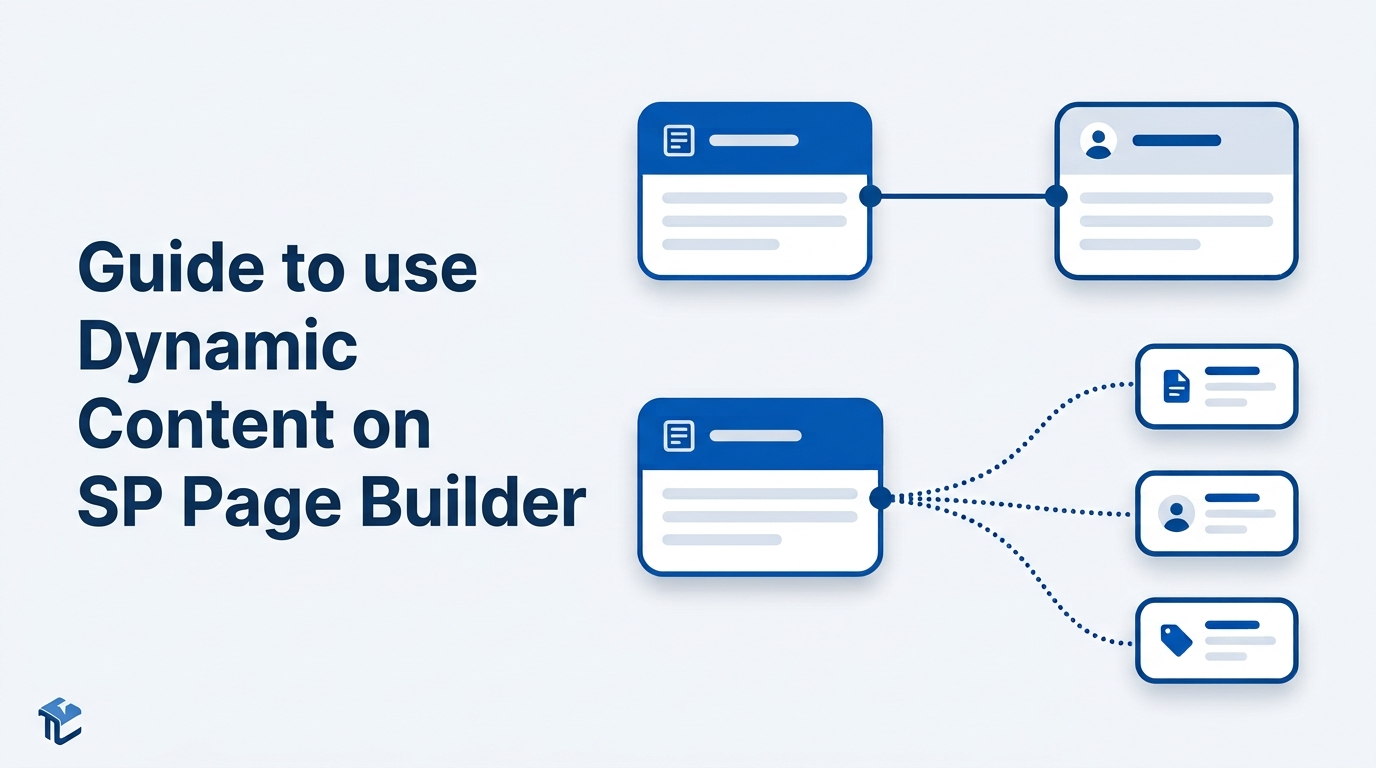
If you've ever found yourself re-typing the same speaker bio, product details, or team member info across multiple pages, Dynamic Content in SP Page Builder is the feature that puts an end to that. And once you've got the basics down, Reference and Multi-Reference fields take things a step further by letting different collections talk to each other — so your Sessions page can automatically pull in Speaker details, your Products page can pull in Category info, and so on.
In this guide, we'll walk through what Dynamic Content is, how Collections work, and then dive into the star of the show: connecting collections together with Reference and Multi-Reference fields.
What Is Dynamic Content?
Dynamic Content is SP Page Builder's system for managing structured, reusable data and connecting it to your page designs. Instead of manually editing text on every page whenever something changes, you define a content structure once, add your data, and let it flow into your layouts automatically. Update the data once, and every page that uses it updates too.
It's built for things like:
- Portfolios and case studies
- Team or staff directories
- Recipes
- Product or service catalogs
- Job listings and real estate listings
A few things that make it worth using:
- One place to manage everything — no more hunting through pages to fix a typo in a job title.
- Custom fields — text, images, dates, numbers, links, and more, so you capture exactly the data your content needs.
- Ready-made presets — Recipes, Team Members, Portfolio, Projects, Jobs, and Listings collections come pre-built with sensible fields so you're not starting from zero.
- Scales easily — works whether you have 10 items or 10,000.
You'll find it in your Joomla backend under Components > SP Page Builder Pro > Dynamic Content.
Step 1: Understand Collections
A Collection is essentially a content type — a structured group of related items. Think of it like a mini-database table living inside SP Page Builder. If you're building a conference website, you might have a "Sessions" collection, a "Speakers" collection, and a "Tags" collection.
Creating a Collection
- Go to Components > SP Page Builder Pro > Dynamic Content.
- Click + Add New Collection.
- Choose either:
- A Preset Collection (Team Members, Recipes, Portfolio, Projects, Jobs, Listings) for a fast start, or
- A Custom Collection if you want to build the structure yourself.
- Give it a clear name (e.g., "Portfolio Projects") and set a URL slug.
- Add your fields — text, image, date, link, and so on — using the + Custom Fields button.
- Configure each field's label, whether it's required, and any validation rules.
- Click Create to save.
Even if you start from a preset, you're not locked in — you can add, remove, reorder, or edit fields at any point to match your actual content needs. You can also manage who has access to a given collection through the Permissions option (found under the three-dot menu next to a collection), which lets you restrict editing to specific admin groups.
Step 2: Add Your Fields and Items
Once a collection exists, define the fields that shape what each entry contains (title, image, price, date, etc.), then start adding actual items — the individual entries that will populate your pages. Each item fills in the fields you defined, the same way each row in a spreadsheet fills in the columns.
With items in place, you can display them two ways:
- Collection Index — shows a list of items (e.g., a grid of blog posts or team members).
- Collection Details/Pages — a single reusable layout that displays one item's full details, automatically populated per item.
This is where things get powerful once you connect one collection to another — which brings us to Reference and Multi-Reference fields.
Step 3: Connect Collections with a Reference Field
A Reference Field creates a one-to-one link between an item in one collection and a single item in another collection. Rather than retyping related information by hand, you just select the related item from a dropdown.
When to use it: whenever an item genuinely relates to just one other item.
Classic example: a "Sessions" collection and a "Speakers" collection. Each session has exactly one speaker, so instead of typing that speaker's name, bio, and photo into every session, you reference the Speakers collection directly.
Setting Up a Reference Field
- Open your Sessions collection.
- Click + Custom Fields and choose Reference.
- Select Speakers as the collection to reference.
- Name the field (e.g., "Speaker").
- Save the collection.
Now, whenever you create or edit a session, you'll see a dropdown where you simply pick the speaker from your Speakers collection instead of typing their details from scratch. This keeps speaker information consistent across every session automatically.
Displaying the Referenced Data
To show the referenced speaker on your Session page:
- Add a Dynamic Text addon and set its Field Source to the Reference Field (e.g., Speaker Name).
- Add a Dynamic Image addon for the speaker's photo, setting the Field Source to Reference Field > Profile Picture.
That's it — the speaker's name and photo will now pull directly from the Speakers collection wherever this session is displayed.
Step 4: Connect Collections with a Multi-Reference Field
A Multi-Reference Field is the one-to-many version — it lets a single item link to multiple items in another collection.
When to use it: tags, categories, related products, multiple authors — anything where one entry can be associated with several related items at once.
Classic example: that same Sessions collection, but now linked to a "Tags" collection, where one session might be tagged "Web Design," "Marketing," and "Development" simultaneously.
Setting Up a Multi-Reference Field
- In your Sessions collection, click + Custom Fields and choose Multi-Reference.
- Select Tags as the reference collection.
- Name the field (e.g., "Related Tags").
- Save the collection.
When editing a session, you can now select as many tags as apply, instead of manually typing each one.
Displaying Multi-Referenced Data
Since a Multi-Reference field can pull in several items, you'll need the Collection addon (built for showing lists) rather than a single Dynamic Text field:
- Add a Collection addon and set its Source to the Tags collection.
- Add a Filter so only the tags relevant to the current session appear — otherwise you'd show every tag in the system on every session.
- Go to Filter > + Add Conditions.
- Select Tags as the reference collection.
- Set the Condition to Is Associated With.
- Select the field that does the referencing — in this case, Related Tags.
- Add a Dynamic Text addon inside the Collection addon and set the Field Source to Title, so each tag's name displays.
The filter is the key step here — it's what narrows the Tags list down to only the ones actually attached to the session being viewed, instead of dumping your entire tag library onto the page.
Reference vs. Multi-Reference: Quick Recap
| Reference Field | Multi-Reference Field | |
|---|---|---|
| Relationship | One-to-one | One-to-many |
| Use case | A session has one speaker | A session has several tags |
| Display addon | Dynamic Text / Dynamic Image | Collection addon + Filter |
| Selection | Pick one item | Pick multiple items |
Why Bother Connecting Collections at All?
It comes down to three things:
- Less duplicate data entry — enter speaker info once, reuse it across every session they're part of.
- Consistency — update a speaker's bio or photo once, and it updates everywhere that speaker is referenced.
- Cleaner content architecture — your data mirrors real-world relationships (a session has a speaker, a product belongs to a category) instead of being flattened into repetitive text fields.
Need help setting this up on your own site?
If you'd rather have a specialist configure your Collections, Reference fields, and dynamic layouts for you, our customization service can set it up end-to-end and tailor it to your exact content structure.
Register and purchase a monthly plan to get started →Wrapping Up
Dynamic Content gives you a central place to manage structured data, Collections let you organize that data by type, and Reference/Multi-Reference fields let those collections relate to each other the way real content actually does — one speaker per session, many tags per session, and so on. Once it's set up, updating your site becomes a matter of editing one item instead of hunting down every page where that information appears.
From here, a natural next step is exploring Collection Filters more broadly, since filtering is what lets you build targeted views — like "sessions tagged Marketing" or "products in Electronics" — from the connections you've just created.
Comments (0)
No comments yet. Be the first to comment!